You can access the application on the EdTech CLC web site and click the Submit Request button on the page.
The software request application will close at the end of the business day on April 21, 2017, so please get your requests in by then.
Even if you have requested software previously, we need to know if you are still planning on using the software this Fall. Please submit software requests for all of your classes, if you have more than one class that accesses the requested software. This process helps us make sure we have enough licenses for your software requests as well as determining if we need to purchase new licenses for new software that is requested.
Questions, comments, or concerns about the CLC Software Request process can be sent to edtech@mst.edu.
]]>Update: Shibboleth has been fixed. You should be able to log into Canvas now. If you experience further issues, please contact the Help Desk at 341-4357.
]]>Apple computers have been rising in popularity and Apple has been adding new features to their operating system to mimic some of the other major operating systems. I’d like to cover a couple of features that have been available in macOS for a while, but may not be known to those new to macOS. For more information about each of the features, click the Apple support page link.
Screenshots
Apple has a built in screenshot command that can take a screenshot of the entire screen or just a portion of it. To take a screenshot of the whole screen, press Command (⌘) – Shift – 3. To take a screenshot of part of your screen, press Command (⌘) – Shift – 4 and then select the portion of the screen you want to capture. (Apple support page)
Screen Recording
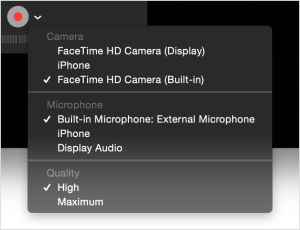
Apple also has a built in screen recording feature. To use this feature, you can open QuickTime Player and select the New Screen Recording option from the File menu. This allows you to capture all or part of your Mac screen. You can also record the screen of your iOS device by connecting the device to your computer with a Lightning cable and selecting the New Movie Recording option from the File menu. (Apple support page)
Split View
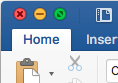
Apple added in a feature that is similar to one that Windows has had for a while, called Split View. This allows you select two different apps and have them fill your screen, without having to manually move and resize windows. To enter Split View, hold down the green, full-screen button in the upper-left corner of a window. The window will shrink and you can then drag it to the left or right side of the screen. Release the button, then click another window to begin using both windows side by side. (Apple support page)
I plan on writing up more of these in the future and would welcome any tips and tricks you might have picked up while using Macs. For more help, you can contact me at x4216 or at noswald @ mst.edu.
]]>Two separate DDoS attacks on key providers of core internet services (e.g. DNS) today have caused widespread problems with many internet-based products and services.
Some Canvas third-party services are currently unavailable.
Edit: Services were restored late Friday evening.
]]>The software request web-based application is available on the EdTech web site.
- Go to edtech.mst.edu/clc/.
- Click Request Software (Faculty).
Please enter all software requests before close of business on FRIDAY, NOVEMBER 4, 2016.
Software must be requested for each semester in which it will be used!
Software currently available in each of the CLCs on campus can be found on EdTech’s CLC index page.
- DO submit requests in a timely manner to ensure the best possible support from IT and EdTech.
- DO submit requests for software that is already installed. This helps IT and EdTech determine how each application is currently being used and which licenses need to be renewed.
- DO submit requests for software for which the license has not been acquired. We need to know which software is requested to obtain the proper licenses!
We appreciate your cooperation!
Questions, comments, or concerns about the CLC Request process can be sent to edtech@mst.edu.
]]>